Background Export Processing & Real-Time Task Tracking
What's New
Background Exports
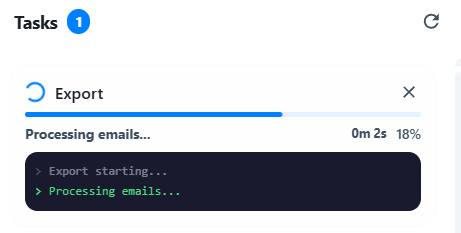
Exports no longer lock you into a progress screen. Start an export and continue triaging or redacting — your work isn't interrupted.

Live Progress Tracking
The hourglass icon in the top-right shows active exports with a real-time progress bar. Hover over a running task to see a detailed console log of what's being processed.
Detailed Progress Console
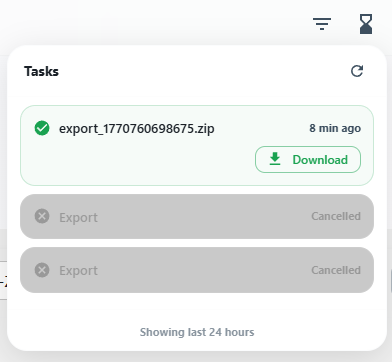
Hover over any running export in the Tasks panel to reveal a live console log. See exactly what's being processed in real time — files, email counts, and processing speed — all in a compact terminal-style view that fades in smoothly on hover.
Download Notifications
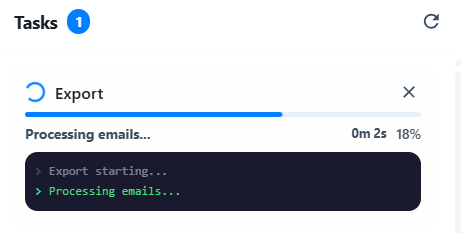
When an export finishes, a notification dot appears on the hourglass icon. Click to open the Tasks panel and download your file. You'll also receive an email with a secure download link (valid for 24 hours).
Custom Export Names
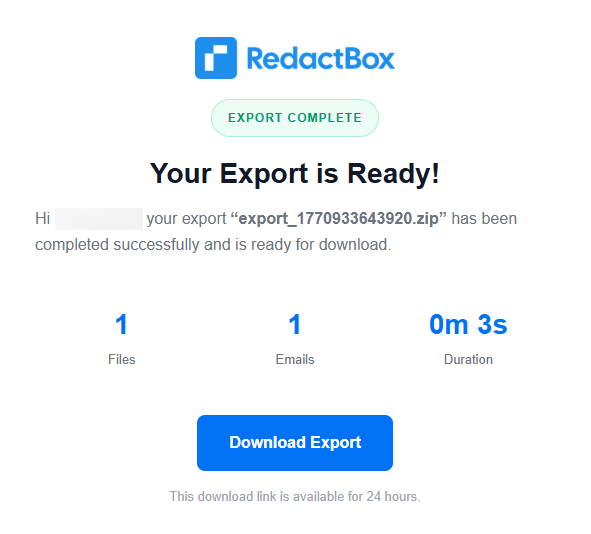
You can now name your exports before starting them. The zip file and email will use your chosen name.
Task History
The Tasks panel shows your last 24 hours of exports — completed, failed, or cancelled. Retry failed exports with one click.
Email Preferences
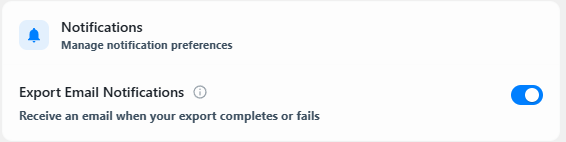
Don't want export emails? Toggle them off in Settings > Notifications.
Improvements
Export view has been redesigned for better performance and responsiveness
Export button shows a brief "track progress in the top right" hint after starting
Download links are generated fresh on each click for improved security