
Changelog

Follow new updates and improvements to RedactBox.

Stats: see if you will make the deadline, and what might be missed

New

With a SAR or FOI deadline coming up, two questions matter: will you finish in time, and has anything slipped through? Stats now answers the first, and a new check answers the second. Tools › Redactions has been rebuilt to match.


Know whether you will make the deadline

Stats used to summarise redaction counts. It now opens with the response deadline and where the project stands against it. Open a project, click Tools and choose Stats.

  • Response deadline. Days left, items still to triage or review, and the date you will finish at your pace over the last 7 days. The finish turns red if it falls after the due date.

  • Coverage in four parts. Items with a redaction, items approved with nothing redacted, items flagged or trashed, and items not yet triaged. The approved but unredacted share is hatched so it stands out.

  • Changes since you last looked. Turn it on to see what has moved since your last visit, with a badge on every figure that changed.

  • Who did the work and what went out. Contributors with their role, the most redacted items and terms, and your recent exports. Click a term to open it in Redactions.

The Download PDF report button now produces a report with an at-a-glance summary, definitions and a sign-off block for whoever approves the response. Redacted terms are always masked in the PDF.

Catch redactions that might have been missed

If you redact a name across most of a project, one approved item without it can slip through unnoticed. Possibly missed redactions: on Stats, lists approved items that have nothing redacted but contain a term you have redacted elsewhere.

  • Check once, then it keeps up. Click Check for missed redactions. After that, RedactBox checks again whenever items are approved, or redactions change.

  • Decide by term. Review all opens the Possibly missed tab in Redactions, one row per term. Redact the term in all its items, or just the ones you tick, or mark it Not relevant. Not relevant is recorded in Audit Logs.

  • Know its limits. It reads the text of approved items with no redactions at all. Scanned pages, attachments and items that already carry a redaction still need your eye.

Redactions, rebuilt

Tools › Redactions is now a list of every redacted term beside the one you have selected. Pick a term to see how often it was redacted, its reason and note, and every file it is in, with the term highlighted or shown as it will export.

  • Find terms fast. Search, filter by how a term was redacted, show only terms with No reason, and sort the list.

  • Undo before it happens. Removing a redaction waits six seconds with an Undo button before it goes through.

  • Select like everywhere else. Shift-click ticks a range, and Ctrl or Cmd-click ticks one at a time, as in People and Search & Redact.


Improved

  • Same person? In People and identifiers, rows that look like one person (the same full name, or a shared address) are grouped for you to join. If they are different people, say so once, and nobody on the project is asked again.

  • Job emails keep names out of the subject line. Export and convert emails no longer put project or file names in the subject, because SAR work is often named after the person. A failed export now says so plainly, and replies reach our support team.

  • One loading screen. Opening the console from the website shows a single loading screen instead of two.

  • Buying for colleagues. Account › Subscription points you to a team licence before you buy a personal plan.


Full guidance lives in our Knowledge Centre: https://help.redactbox.co.uk/en

As always, hit the feedback portal to tell us what is missing or what could be sharper: https://feedback.redactbox.co.uk/

NewImproved

People and identifiers: decide once per person, redact everywhere

New

Most of a subject access request is about people: who is named, who has to stay in, and who needs blacking out in every document they appear in. Until now that meant searching for each name and redacting it wherever it turned up. This release lets you decide once per person, carries that decision across the project, and keeps a record you can show anyone who asks.


People and identifiers

Open a project, click Tools and choose People and identifiers. RedactBox lists everyone it found: senders and recipients, and names in quoted messages, sign-offs and addresses. Each person is one row, with the number of documents they are in and extracts showing how the name is used.

  • Decide once. Redact, Leave in or Skip, or press R, L or S. Redact covers the person in every approved document. Leave in asks for a reason, which goes on the record.

  • Several at once. Tick a group, such as the other pupils in a school SAR, and redact them in one run. One Undo takes the whole run back and leaves boxes you drew by hand alone.

  • New documents are covered. Approve more documents and the next scan picks them up by itself. Everyone you decided to redact is redacted in them too.

  • Must stay in. The requester, and anyone else you add in Request details, is never redacted.

  • Identifiers. Phone numbers, postcodes, NHS and National Insurance numbers, sort codes and card numbers, with one decision for each kind.

What gets redacted for a person

Their full name in its usual forms, every other spelling, every email address, and titles with their surname, such as "Dear Mrs Okonkwo".

A surname or first name on its own is not redacted, because it often belongs to someone else, such as a relative or a colleague. The tool tells you (Not redacted on their own: Okonkwo, Ngozi) and Find Okonkwo takes you to Search & Redact to deal with those by hand.

Titles get the same care. "Mrs Okonkwo" could be anyone with that surname, so a title is redacted only when everyone on the list with that surname is being redacted. Until then the tool shows Titles with Okonkwo held and says who is holding it back. Redact the last of them and the titles follow straight away.

Suggestions in the document you are reading

Open a document in Redact and a small panel in the top right lists the people and numbers found in it that are still to be decided. Redact here covers every spelling on the card in this document only. All approved makes the same decision across the project, and Keep records why a person stays in. Redact here marks the text itself, so the export covers every character, and it tells you when part of a value is not on the page.

Audit Logs, rebuilt

Audit Logs is now the project's record of what happened and why. Everyone you share the project with sees the same record.

  • Timeline. Every decision, redaction, export and sharing change, newest first, with who did it, the reason code and any note. Filter it by kind or search it.

  • Record. Where the project stands now: who is blacked out everywhere, who only in some documents, who was left in and why, and who is not yet decided. Below it, every redacted value with its reason.

  • Schedule of Redactions. The file for the requester: every redaction and its reason code, without the redacted text. It now goes inside every export ZIP (ticked by default), and Audit Logs downloads it for the whole project.

Owners and editors can also download the full audit log for their own file. It contains the redacted text, so never send it to a requester.


Improved

  • Tools open in place. Search & Redact, Word Lists, Duplicates, Redactions, Stats and Audit Logs open over your documents, one at a time, each at its own address, so Back and reload work as you expect.

  • Pin to top. Pin the projects you are working in to the top of your dashboard from the project's menu. Anyone the project is shared with can pin it for themselves.

  • Exports say what they left out. If items you picked by hand are not in an export, it says how many and why, for example in the trash or not approved.

  • Cc on the PDF. Items imported from now on show who was copied in, so the PDF is a complete record of the message.

  • Boxes that cover the whole word. If a box placed over text stops short of it, the export now grows the box to cover every character.

  • Less of your data in our logs. Our service logs no longer record redacted text, search terms, names, email addresses or document text.


Fixes

  • In Search & Redact, a reason code picked just before you confirm is always saved with the redactions.

  • The NHS number pattern no longer picks up UK phone numbers, and the UK phone pattern no longer picks up reference numbers that contain a run of digits.

  • After a file uploads, its card counts the items as they are read and then says Ready, instead of sitting on "Processing in background".


Full guidance lives in our Knowledge Centre: https://help.redactbox.co.uk/en

As always, hit the feedback portal to tell us what is missing or what could be sharper: https://feedback.redactbox.co.uk/

NewImprovedFixed

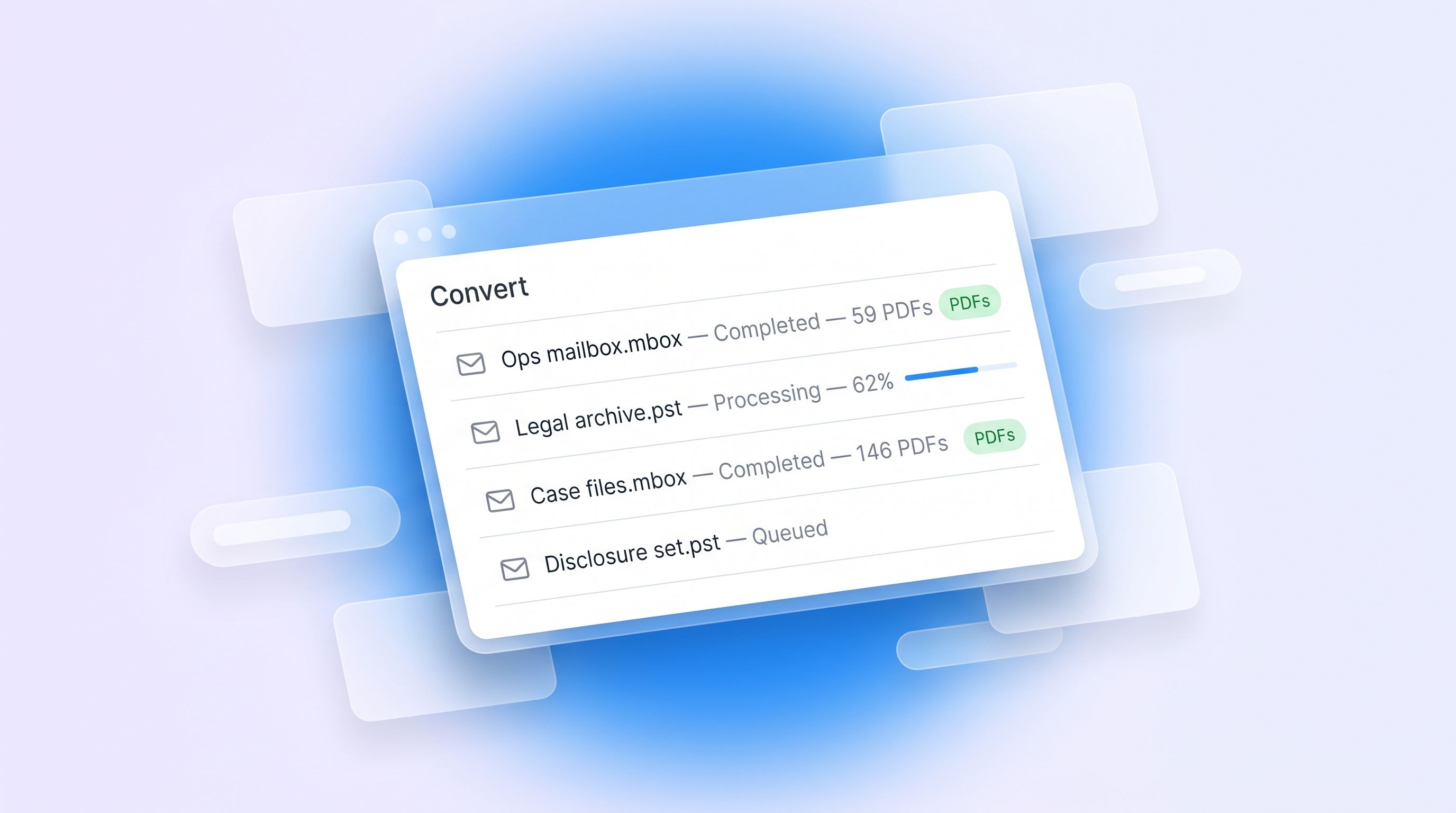
Convert: turn a mailbox into PDFs, without starting a project

Plenty of the time you don't need to redact anything. You need a mailbox for readable documents: to send to a solicitor, to file, or to hand to someone who will never log into RedactBox.

Until now, that meant creating a project and working through a redaction flow you didn't want. Convert skips all of it.

How it works

Open Convert from your dashboard, drop in your files, and start the job. Every message becomes its own PDF, named by date and sender so the output sorts itself. Attachments come out in their original format — a spreadsheet stays a spreadsheet — saved in a folder beside the message they came from.

It runs in the background. Close the tab if you like; we'll email you a download link when it's finished, and the job page tells you which item it's on while it works.

It also flattens PDFs

Same tool, second job type: give it a PDF with form fields, annotations or layers and it burns them into the page, so nothing can be lifted back off.

What you get

  • A PDF per message, dated and sender-named

  • Attachments in their original format, beside their message

  • An attachment list inside each message PDF, with a copy embedded

  • One zip, downloadable for 7 days

Limits

Free: one file per job, up to 50 MB. Professional: up to 100 files per job, 3 GB each. Archives of several thousand messages are the normal case, not the stress case.

Worth saying plainly: Convert doesn't redact. It reproduces your messages faithfully, personal data included. If you need redaction, use a project.

Read the guide

New

Earlier updates